
How to Test Emails in Node.js
Testing emails in Node.js with Nodemailer and an SMTP sandbox: catch the email, wait for it in a test, follow the link, run it in CI, check it in Outlook.

The safest way to test emails in Node.js is to make sure your development environment never has a real mail server to talk to. Nodemailer gets the credentials of an SMTP sandbox instead. A sandbox such as Mailloop, which is built for testing transactional email, takes the message like any mail server would, but it keeps it in an inbox for you instead of delivering it, and a test can ask what arrived.
This guide does the whole thing with Nodemailer and Mailloop. We catch a first email, check it in a test, open the link inside it, and run the tests in CI. At the end comes a problem no test will tell you about, which is how the email looks in Outlook, and a way to let an AI agent fix that by itself over MCP. The examples use Nodemailer 7 and Vitest 2 and need Node.js 18 or newer.
On this page10 sections
- Catch the first email
- Wait for the email in a test
- Open the link from the email
- Emails that come out of a queue or a notification service
- Run email tests in GitHub Actions
- Share test emails with your team
- The tests pass and Outlook still breaks it
- Keep a render of every run in CI
- Let an AI agent test and fix the email in a loop
- Which email testing tool for which job
Catch the first email
Sign up at mailloop.io and create a sandbox. The free plan is enough for everything in this guide, it gives you one sandbox and 500 emails a month. The sandbox page shows an SMTP username and password, and its Copy as .env button puts them on your clipboard ready for your .env:
SMTP_HOST=sandbox.mailloop.io
SMTP_PORT=2525
SMTP_USER=your-sandbox-username
SMTP_PASS=your-sandbox-password
The mailer reads them from there, using Nodemailer's ordinary SMTP transport:
// mailer.js
import nodemailer from 'nodemailer';

export const mailer = nodemailer.createTransport({
  host: process.env.SMTP_HOST,
  port: Number(process.env.SMTP_PORT),
  auth: { user: process.env.SMTP_USER, pass: process.env.SMTP_PASS },
});
Now send something, from a script or by signing up in your own app:
await mailer.sendMail({
  from: 'Acme <[email protected]>',
  to: '[email protected]',
  subject: 'Confirm your Acme account',
  html: '<a href="https://acme.test/verify?token=tok_123">Confirm my address</a>',
});
The email shows up in the sandbox a second later with its HTML, the plain text part and all the headers. Nothing is delivered to [email protected]. The recipient can be any address, the sandbox keeps everything that is sent with its credentials.
This is what a sandbox looks like once a few emails are in it:
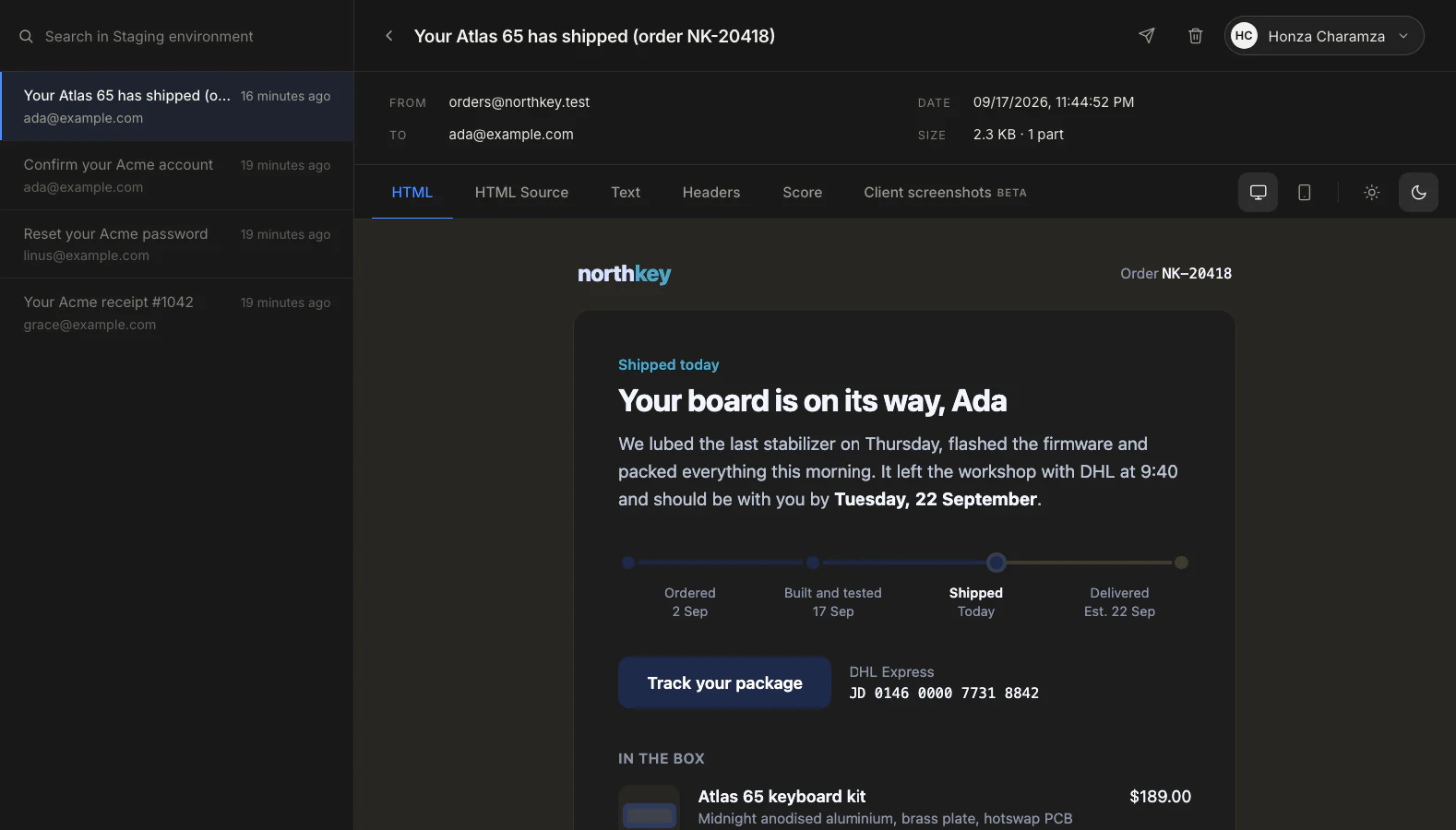
Every environment except production should send to a sandbox like this. Most stories about customers getting a "Hi Test User" email begin with staging sharing a mail password with production and somebody running a seed script against the wrong database.
None of this needs SMTP in production. Plenty of Node apps send through an HTTP API like Resend, SendGrid or Postmark, and all three of those also accept SMTP. The simplest setup is to keep sending behind one small function and let it use Nodemailer whenever SMTP_HOST is set, which is in development and in tests. The part worth testing is the email itself, the template, the recipient and the link, and that is the same whichever way it leaves.
Some senders have no SMTP settings at all (newsletter tools, hosted notification services). Those can still be caught. Every sandbox has an address of its own, and mail sent to it from anywhere lands in the same inbox:
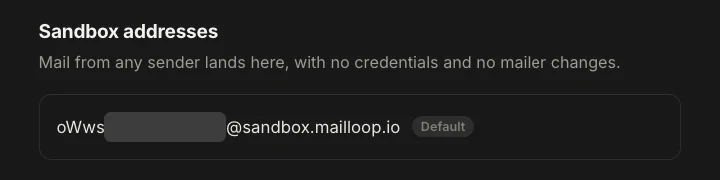
Use that address as the recipient. Anything after a plus sign is ignored when the mail is routed, so [email protected] arrives in the same sandbox and a test can still have a recipient nobody else uses.
If your emails are not allowed to leave your machine at all, Mailpit is a good open source alternative for local work. It runs in Docker, takes SMTP on localhost:1025 without credentials and has a web inbox on port 8025. The Nodemailer side of this guide stays the same. The rest of it uses Mailloop, because a hosted sandbox is less to set up and it keeps working once the tests move to CI.
Wait for the email in a test
A test needs to read the email back, and for that there is an SDK:
npm install --save-dev @mailloop/sdk dotenvCreate an API key under Settings in the dashboard and add it to .env as MAILLOOP_API_KEY, together with the id of your sandbox (it is in the sandbox URL) as MAILLOOP_SANDBOX_ID.
Vitest needs two settings for this, [setupFiles](https://vitest.dev/config/#setupfiles) and testTimeout. It does not load .env into process.env by itself, and its default limit of 5 seconds per test is shorter than the time we are willing to wait for an email:
// vitest.config.js
import { defineConfig } from 'vitest/config';

export default defineConfig({
  test: {
    setupFiles: ['dotenv/config'],
    testTimeout: 35_000,
  },
});
The code under test is an ordinary signup. It stores a token and emails a link with that token in it:
// signup.js
import { randomUUID } from 'node:crypto';
import { mailer } from './mailer.js';
import { db } from './db.js';

export async function signUp({ email, name }) {
  const token = randomUUID();
  await db.users.insert({ email, name, token, verified: false });

  await mailer.sendMail({
    from: 'Acme <[email protected]>',
    to: email,
    subject: 'Confirm your Acme account',
    html: `<p>Hi ${name},</p>
           <p><a href="${process.env.APP_URL}/verify?token=${token}">Confirm my address</a></p>`,
  });
}
And the test:
// signup.test.js
import { test, expect } from 'vitest';
import { MailloopClient } from '@mailloop/sdk';
import { signUp } from './signup.js';

const mailloop = new MailloopClient({ apiKey: process.env.MAILLOOP_API_KEY });
const sandboxId = process.env.MAILLOOP_SANDBOX_ID;

test('signing up sends a verification email', async () => {
  const email = `ada+${Date.now()}@example.com`;
  await signUp({ email, name: 'Ada' });

  const message = await mailloop.emails.waitFor(sandboxId, {
    to: email,
    subject: 'Confirm your Acme account',
  });

  expect(message.html).toContain('/verify?token=');
});
The test calls the same signUp the app uses, so the email goes through the real template and the real transport. The address is different on every run because the sandbox is shared. Your teammates and your CI send to it too, and filtering on a recipient nobody else uses is how the test finds its own email among theirs.
waitFor does the waiting on the server. It returns as soon as a matching email arrives, and after 30 seconds without one it throws a TimeoutError. That takes care of a problem that usually shows up later, when sending moves to a queue and the email arrives a few seconds after the request has returned. People tend to patch that with await sleep(3000), which slows every test down and still fails on a busy CI machine. Here the test does not care when the email was sent.
A mocked sendMail would be faster, but it keeps passing when the template throws or when APP_URL is missing and every link starts with undefined, so it is worth having one test per kind of email that sends it for real.
Open the link from the email
Checking that the HTML contains a URL is a start. It is better to take the URL out and open it, because then the test fails for the same reasons a user would get stuck:
const [link] = message.html.match(/https?:\/\/[^"]+\/verify\?token=[^"]+/);
await fetch(link);

const user = await db.users.findByEmail(email);
expect(user.verified).toBe(true);
A wrong host, an expired token or a typo in the route all fail here now. One-time codes work the same way, and the plain text part is easier to search than the HTML:
const [code] = message.text.match(/\b\d{6}\b/);Attachments come back with the message too, which is handy for invoices and tickets:
const [invoice] = message.attachments;
expect(invoice.filename).toBe('invoice-1042.pdf');
expect(invoice.contentType).toBe('application/pdf');
expect(invoice.size).toBeGreaterThan(1000);
Nothing here depends on Vitest. The SDK is plain promises and ships as both CommonJS and ES modules, so the same waitFor works in Jest, in node:test and in a Playwright end to end test, where the link gets opened in a real browser:
// signup.spec.js
import { test, expect } from '@playwright/test';

test('a new user can confirm their address', async ({ page }) => {
  const email = `ada+${Date.now()}@example.com`;
  await page.goto('/signup');
  await page.getByLabel('Email').fill(email);
  await page.getByRole('button', { name: 'Sign up' }).click();

  const message = await mailloop.emails.waitFor(sandboxId, { to: email, timeout: 20_000 });
  const [link] = message.html.match(/https?:\/\/[^"]+\/verify\?token=[^"]+/);

  await page.goto(link);
  await expect(page.getByText('Your address is confirmed')).toBeVisible();
});
Jest has the same 5 second default as Vitest, so raise testTimeout there as well. Playwright gives a test 30 seconds, which is why waitFor gets a shorter timeout here.
Emails that come out of a queue or a notification service
In a bigger app the email is often not sent by the request at all. The request puts a job on a queue, or calls a notification service that decides between email, push and SMS, and a worker sends the email some time later. The test does not change. It triggers the notification and waits for the email to the address it made up:
await notify(user, 'invoice.paid'); // returns right away, a worker does the sending

const message = await mailloop.emails.waitFor(sandboxId, {
  to: user.email,
  subject: 'Your invoice',
});
The opposite case is worth a test as well. A user who switched email notifications off should get nothing, and a short timeout checks that:
import { TimeoutError } from '@mailloop/sdk';

await expect(
  mailloop.emails.waitFor(sandboxId, { to: mutedUser.email, timeout: 5000 })
).rejects.toBeInstanceOf(TimeoutError);
A hosted notification service has no SMTP settings to point at the sandbox, so there the recipient is the sandbox address from the first section, with a plus tag that only this test uses:
const sandbox = await mailloop.sandboxes.get(sandboxId);
const email = sandbox.emailAddress.replace('@', `+${Date.now()}@`);

await notify({ ...user, email }, 'invoice.paid');

const message = await mailloop.emails.waitFor(sandboxId, { to: email });
This email does travel over the internet and the service that sends it counts it like any other, so keep these tests few.
Run email tests in GitHub Actions
There is nothing to start in the CI job, and the job does not need the SMTP credentials either. The API key can read them from the sandbox, so a small setup file fills them in whenever they are not set:
// test/setup.js
import 'dotenv/config';
import { MailloopClient } from '@mailloop/sdk';

if (!process.env.SMTP_USER) {
  const mailloop = new MailloopClient({ apiKey: process.env.MAILLOOP_API_KEY });
  const sandbox = await mailloop.sandboxes.get(process.env.MAILLOOP_SANDBOX_ID);

  process.env.SMTP_HOST = 'sandbox.mailloop.io';
  process.env.SMTP_PORT = '2525';
  process.env.SMTP_USER = sandbox.username;
  process.env.SMTP_PASS = sandbox.password;
}
In vitest.config.js, setupFiles now points at ./test/setup.js instead of dotenv/config. Vitest runs that file before it imports the test, so mailer.js already sees the values. The workflow is left with two secrets:
jobs:
  test:
    runs-on: ubuntu-latest
    steps:
      - uses: actions/checkout@v4
      - run: npm ci
      - run: npm test
        env:
          MAILLOOP_API_KEY: ${{ secrets.MAILLOOP_API_KEY }}
          MAILLOOP_SANDBOX_ID: ${{ secrets.MAILLOOP_SANDBOX_ID }}
I would not run a mail catcher as a service container in CI. It is one more thing to start and wait for in every job, and whatever it caught disappears with the job, so after a failed run there is no email left to look at.
Because of the unique recipients, jobs running at the same time do not get in each other's way. If a test should have an inbox entirely to itself, the SDK can also create a temporary sandbox with its own credentials that deletes itself afterwards, which the automated testing guide describes.
The same setup covers end to end tests against a preview deployment, where the app runs on a hosting platform and the test runs on a CI runner. The app and the test cannot reach each other there, but both can reach the sandbox. The preview gets the sandbox credentials as its SMTP settings, the test job gets the API key, and the test calls waitFor as before.
Share test emails with your team
Every captured email has its own URL in the dashboard, and it stays there after the test run. So when a job fails overnight, the email it failed on is still there to open in the morning. A designer asking about the new receipt gets a link, and support can check what the password reset email says these days without asking a developer.
When somebody wants to see the email on their own phone, a captured email can be resent to a real address that you have verified. The original HTML goes out as it was, not a forward with your mail app's quoting around it.
The tests pass and Outlook still breaks it
All the tests above can be green while the email is hard to read for part of your users.
Here is the verification email from this guide, written the way most of us write HTML: a centred div with max-width: 480px, padding, rounded corners, and a link styled as a button. I sent it to a sandbox and asked Mailloop to render it as Gmail and as Outlook classic for Windows.
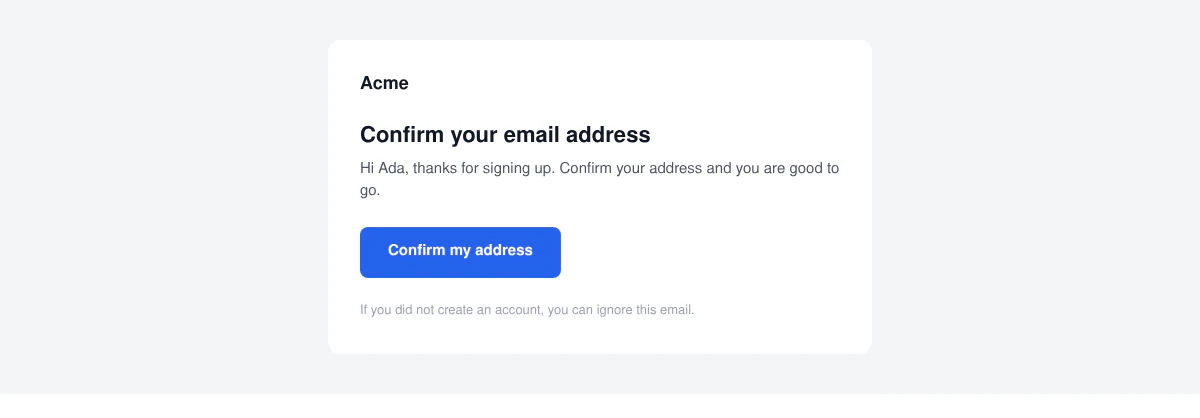

Gmail shows what I designed. Outlook classic lays out HTML with the engine from Microsoft Word, and Word ignores a lot of CSS (Can I email keeps a list of what each Outlook version supports). It dropped max-width, so the content runs across the whole reading pane. It dropped the div's padding and the rounded corners, so the card is gone. It also ignored the padding on the link, and the button ended up as a strip of blue right around the words. The render came back with eight findings, and the one about the button explains it well: a link is a run of text in Word, whatever its display says.
A test on the subject or the link cannot catch this, the link works fine. The old fix still applies. The layout goes into tables, the card gets a fixed width attribute, and the button's colour and padding move from the link to a table cell:
<table role="presentation" cellpadding="0" cellspacing="0" border="0">
  <tr>
    <td bgcolor="#2563eb" style="padding:14px 28px;border-radius:8px;">
      <a href="https://acme.test/verify?token=tok_123"
         style="color:#ffffff;text-decoration:none;font-weight:600;">Confirm my address</a>
    </td>
  </tr>
</table>
I sent that version and rendered it again:
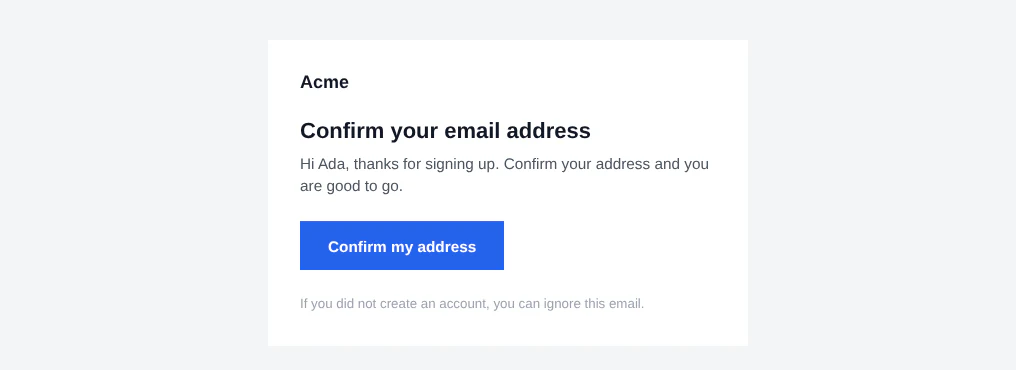
The card and the button are back. The corners stay square because Word does not draw rounded corners from CSS no matter what, and I am fine with square corners in Outlook. In Gmail the table version looks the same as the first one.
Dark mode is the other thing a test will not tell you about. Every client handles it differently: Gmail on the desktop web leaves the message alone, while the Gmail phone apps, Outlook and Apple Mail change the colours of your email. A logo saved as a PNG keeps the colours it was drawn with, so dark artwork can end up on a black card. Any client that has a dark mode can be rendered in it too, so look at the dark version before a template ships.
The renders are in beta. Every client was compared against screenshots from the real one before it was published, so read a render for what the client drops and recolours, and do not count on the exact place a line wraps. See How Your Email Renders in Every Client explains how far they can be trusted.
Keep a render of every run in CI
The same render can be made from a test, so a change to a template leaves a picture behind in CI. This needs version 0.3 or later of @mailloop/sdk and an API key with the emails:screenshot scope. On the free plan the client has to be gmail-web:
import { writeFile } from 'node:fs/promises';

const shot = await mailloop.screenshots.create(sandboxId, message.id, {
  client: 'outlook-windows-classic',
});
await writeFile('renders/verification-outlook.png', await mailloop.screenshots.download(shot));
Add theme: 'dark' to the options for the dark render of a client that has one. One more step in the workflow keeps the files with the run:
- uses: actions/upload-artifact@v4
  if: always()
  with:
    name: email-renders
    path: renders/
A render of the same email, client and theme is stored for seven days and asking for it again costs nothing, so only a template that changed uses up a preview.
Let an AI agent test and fix the email in a loop
Mailloop has an MCP server made for email testing with AI agents, so Claude Code, Cursor or any other coding agent can work with the same sandbox your tests use. In Claude Code it takes one command, and you sign in with OAuth in the browser:
claude mcp add --transport http mailloop https://api.mailloop.io/mcpAsk the agent to make the email look right in Gmail, Outlook classic and Apple Mail, light and dark. It sends the email, waits for it to arrive and gets back a render for every client, each with a list of what that client dropped or recoloured. It fixes the template and goes around again until the list comes back empty.
The renders are what make Mailloop the best fit for letting an AI iterate on the design of an email. The other email MCP servers we know of hand the agent the HTML of a caught message and leave it to guess what Outlook will do with it. Single Prompt To Perfect Email On Every Platform follows one such run, and the MCP docs cover Cursor, VS Code and the other editors.
Which email testing tool for which job
Three tools came up in this guide, and they are for different jobs:
jsonTransport | Mailpit | Mailloop | |
|---|---|---|---|
| What it is | A transport that builds the message and sends nothing | An open source mail catcher you run in Docker | A hosted SMTP sandbox with an SDK |
| Goes over SMTP | No | Yes | Yes |
| Reading the email in a test | The message object only | REST API, the polling is yours to write | waitFor in the SDK |
| In CI | Nothing to set up | A service container in every job | An API key |
| Somebody else can open the email | No | Only if they can reach your machine | Yes, by link |
| How it looks in Gmail and Outlook | No | An HTML compatibility check | Renders per client, light and dark |
| With an AI agent | No | Community MCP servers that read the inbox | Official MCP server with OAuth, reads the inbox and renders the email per client |
| Emails leave your machine | No | No | Yes (GDPR compliant) |
| Price | Free | Free | Free up to 500 emails a month, then from $12 |
Use jsonTransport for unit tests that only care whether an email was requested. Mailpit is the one to pick when mail has to stay on your machine, and Mailloop covers the rest, including everything that runs in CI.
The free plan renders Gmail on the desktop web. Outlook and the other clients, more sandboxes and webhooks start on Basic at $12 a month, and the rest is on the pricing page. The automated testing guide covers the SDK in more detail, and this comparison looks at the other tools with their prices.
Frequently asked questions
Still stuck? Email [email protected] and we will answer.