
Single Prompt To Perfect Email On Every Platform
How to give an AI agent a single prompt and get an email that renders correctly in every client, checked against a screenshot of each one.

Say you want to send a quarterly update to your shareholders. A well built email with the latest numbers in it, except you do not want to write it yourself, so you leave it to your AI agent.
It wrote reasonable HTML. A fluid table capped at 600px, inline styles, no flexbox, no grid, no web fonts. Then it opened the file in a browser, took a screenshot, looked at the screenshot, and told me the email was ready.
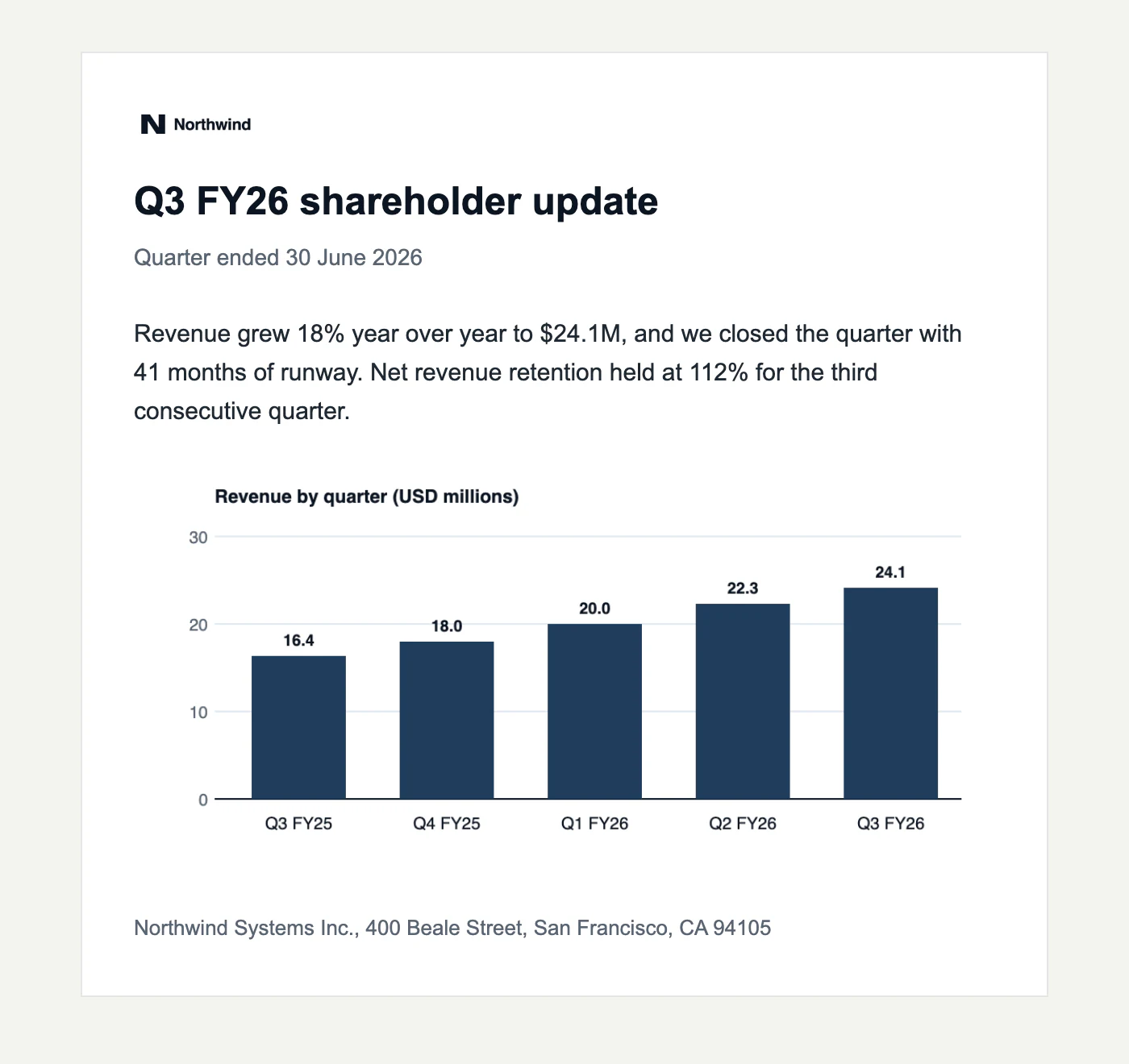
That is what it saw, and it is the one place an email is guaranteed to look right. A browser renders the HTML you wrote. An email client renders whatever is left after it has rewritten your message to suit itself, and every client rewrites it differently.
So the agent was checking its work in the only environment that could not fail.
What Gmail for iOS did to it
Here is the same email in Gmail for iOS, light on the left and dark on the right.
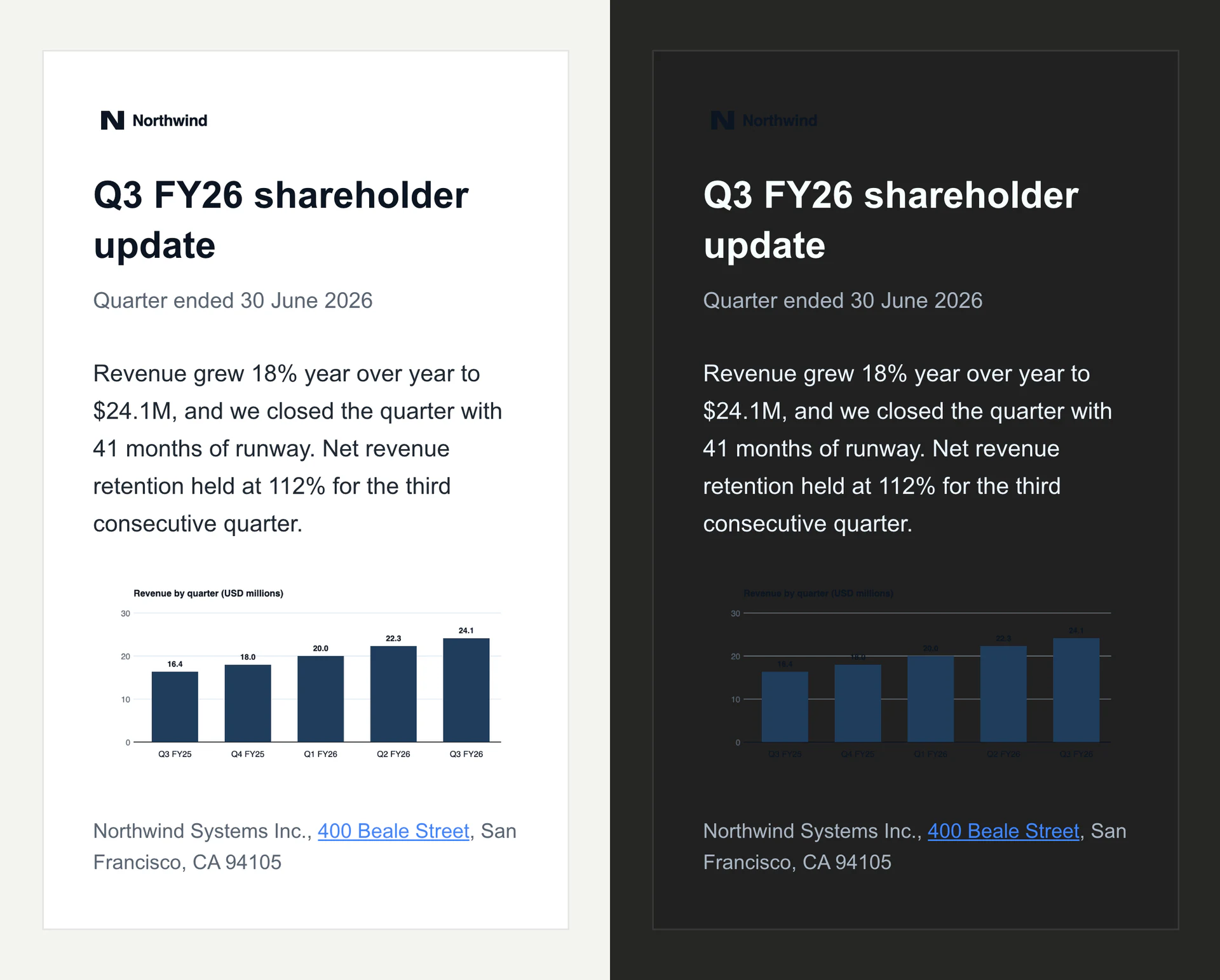
Gmail's mobile app runs a lightness walk over every colour in your message. It does not check whether you support dark mode and it does not ask. The white card came back near black.
The walk skips images.
So the body copy is fine, because Gmail recoloured it. Everything we drew for white paper is not. The wordmark is a smudge, the chart title is gone, and every value label has vanished, including one that disappeared into a gridline. A shareholder opening this on a phone gets five blue rectangles and no numbers.
Nothing in the HTML is wrong. It validates, it uses tables, it avoids every property Gmail strips. No browser will ever report this, and neither will Gmail on a laptop, which leaves your colours alone and shows you the light version on a dark background.
How to test an email in a real client
Give the agent the picture it is missing.
Mailloop renders a captured email the way a client would show it, which is what the renders and findings look like. The agent sends its draft to a sandbox, asks for a render in the clients you care about, and gets images back. Each render also carries a list of what that client changed, as plain JSON, so the agent can act on it without looking at the picture at all. The renders are in beta, and one can occasionally be off.
Three tools are enough to close the loop:
send_emaildrops the draft into a sandboxwait_for_emailblocks until it landsscreenshot_emailrenders it in any client we offer, light and dark
Read what came back, change the template, go round again. For this email it took two attempts.
The first fix did nothing
The agent's first move was the one any frontend developer would make. It built a light version of the chart and swapped it in with a media query:
@media (prefers-color-scheme: dark) {
  .card { background-color: #111418 !important; }
  .chart-light { display: none !important; }
  .chart-dark  { display: block !important; }
}
Correct code. It works in a browser: turn dark mode on in Chrome and the new chart appears, which is exactly the confirmation that keeps you stuck.
Gmail for iOS never fires an email's own prefers-color-scheme rules, so the block was dropped on arrival. The render came back byte for byte identical to the broken one. Same SHA-256. An hour of work and not one pixel moved.
A tool that only catches your first mistake is not worth wiring into a loop. This one caught the fix.
What really worked?
Gmail's colour walk skips gradients. That is the whole trick, and it is why the mix-blend-mode logo workaround has been passed around email developer forums for years. Paint the panel behind your artwork with a gradient from a colour to itself and the walk leaves it alone:
<table role="presentation" width="100%" cellpadding="0" cellspacing="0" border="0"
       style="width:100%;background-color:#ffffff;
              background-image:linear-gradient(#ffffff,#ffffff);">
  <tr><td style="padding:12px;">
    <img src="q3-revenue-chart.png" width="512" alt="Revenue by quarter"
         style="display:block;width:100%;max-width:512px;height:auto;">
  </td></tr>
</table>
background-color covers the clients that ignore gradients. background-image holds the panel white on Gmail iOS.
The wordmark got a different fix, because a logo does not need a white plate if it stops being a picture. The colour walk recolours CSS, so a wordmark built from a background colour and live text flips on its own: ours goes from #0b1522 to #f7ffff with nothing else added.
Three tidier ideas do not survive the trip, and it is worth knowing which. filter: invert() is stripped by the sanitizer. <picture> and <source> are rewritten to <u>, so the art direction never happens. And the prefers-color-scheme swap never fires, same as before. mix-blend-mode does survive, but a white logo blended onto the light card disappears, so it only ever fixes one appearance.
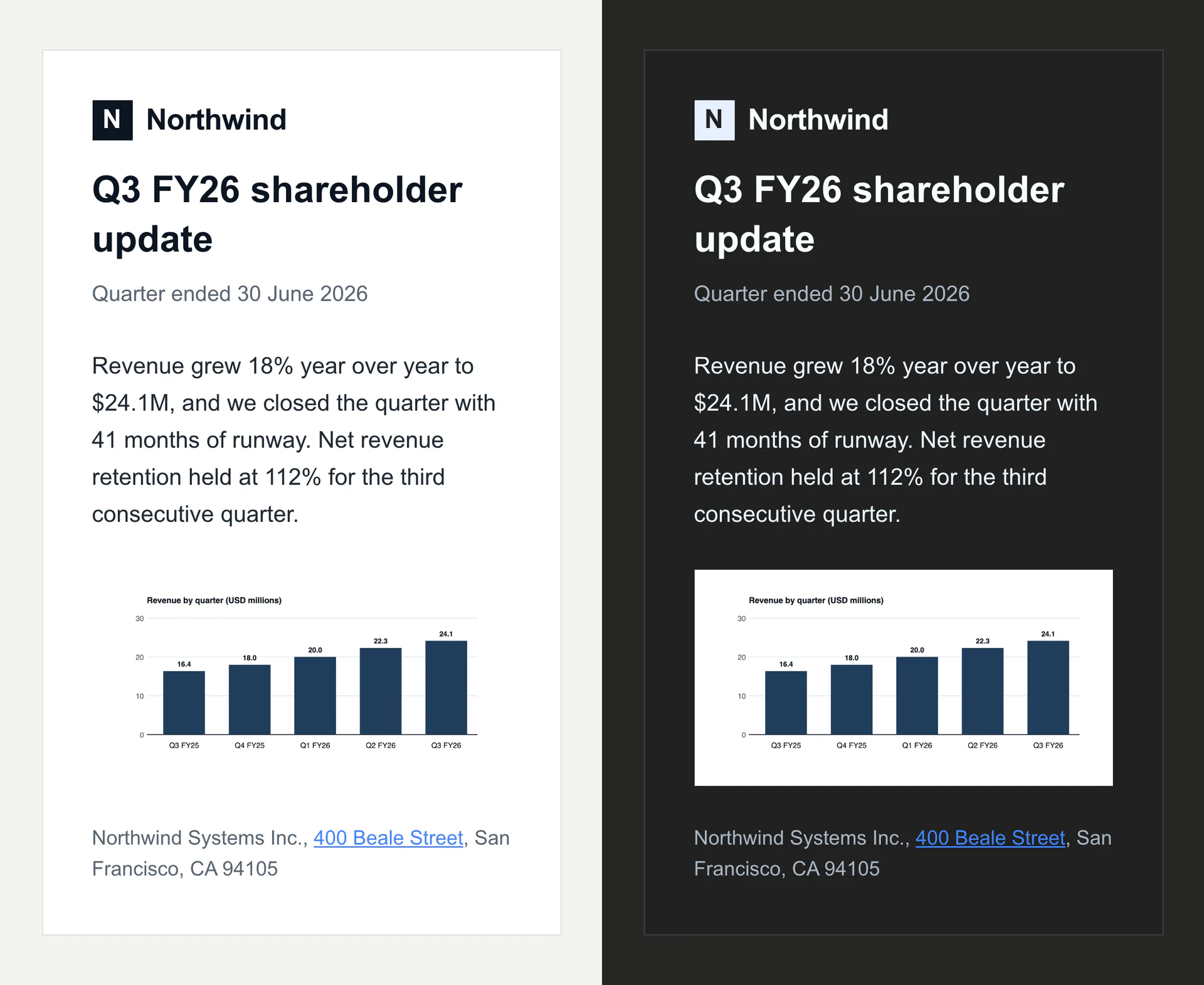
Same email, both appearances. The logo inverts itself, the chart keeps its paper, and the numbers are back.
Lastly let the AI agent resend it to your actual email so you can check it for yourself when its finished.
So how to stop shipping broken emails?
Every failure in this post was found by an agent looking at a picture, not by a person opening a phone. That is the whole shift. You keep writing the email, and the checking stops being your job.
Once your agent is connected, this is the whole workflow:
Write our Q3 shareholder update, then check it renders correctly
desktop and iPhone, light and dark. Fix whatever breaks.
The agent writes the email, sends it, renders it, reads what each client changed, fixes it, and renders again until nothing is left to report. You get a template that has already been through every client your recipients use, and a summary of what it had to change to get there.
Frequently asked questions
Still stuck? Email [email protected] and we will answer.