See How Your Email Renders in Every Client
Capture an email in a sandbox and see it the way Gmail, Outlook and other clients show it, in light or dark, on a phone or a desktop.

Mailloop can now show you what a captured email looks like in a real email client. Send or capture a message in a sandbox, pick a client and a theme, and you get back a render of it the way that client shows it, in light or dark. No device, no virtual machine, no Windows box for Outlook.
The feature is in beta. Every render runs in one browser engine standing in for the client's own, so read it as a guide to what a client drops, clips or recolours rather than as a pixel match, and expect the occasional render that is off. When you get one, write to [email protected] with the email id and the client.
Why a browser screenshot is not an email test
The HTML you send is not the HTML the recipient sees. Gmail strips position, Outlook for Windows still lays out with Word, dark mode recolours your background. The only way to find out what survived was to open the message on a device yourself.
That does not fit in a test run. You cannot install Outlook for Windows on a Linux CI runner, and the services that do render email across clients are built and priced for marketing teams, not for someone checking a password reset template. So we added it to the sandbox you already send your test mail to.
One email in Gmail on desktop and on an iPhone
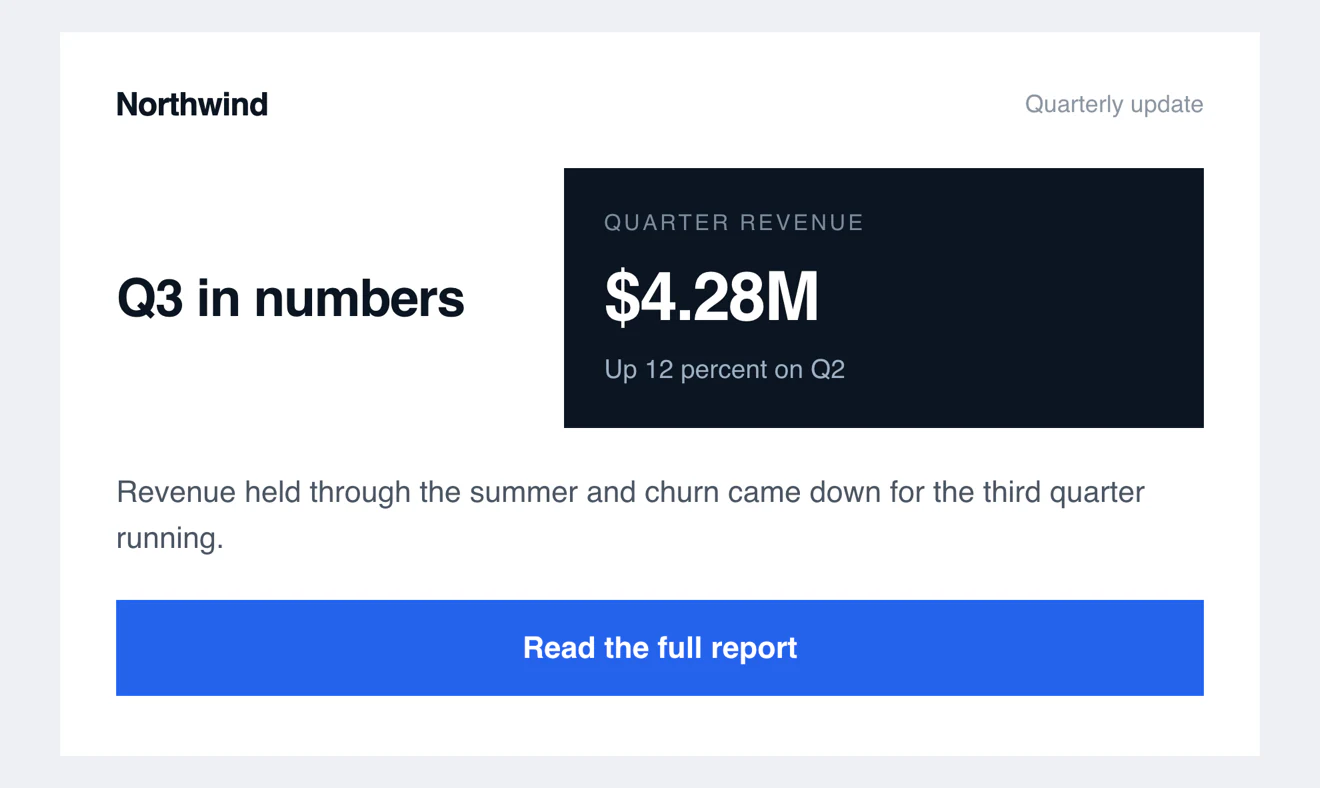
Here is an ordinary quarterly update: the wordmark as a PNG, a headline beside a panel with the quarter's number in it, a line of copy, a button. The panel is 280 pixels of a 600 pixel card, less than half of it. In Gmail in a browser it is exactly what was drawn.
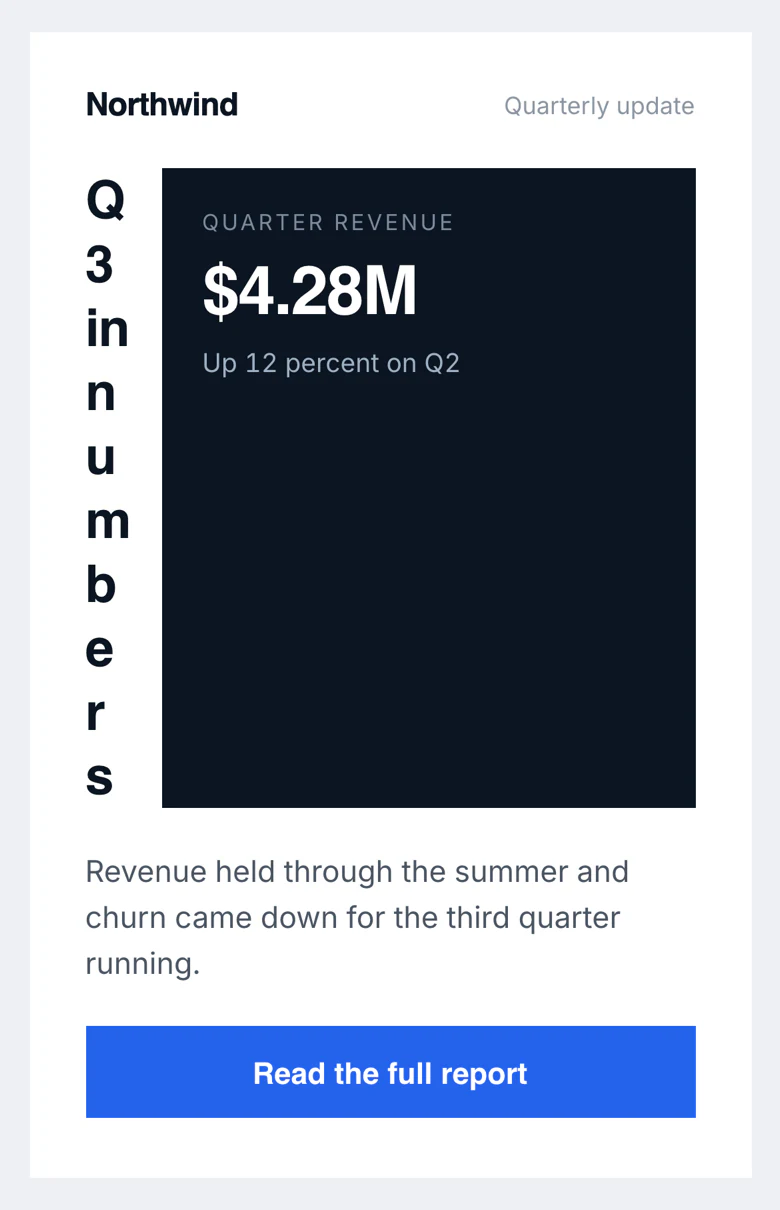
The phone gives that message a 361 pixel column. The panel keeps its 280 pixels, because 280 is what it was told to take, which leaves the headline twenty nine. Q3 in numbers runs down the side of the card one letter to a line.
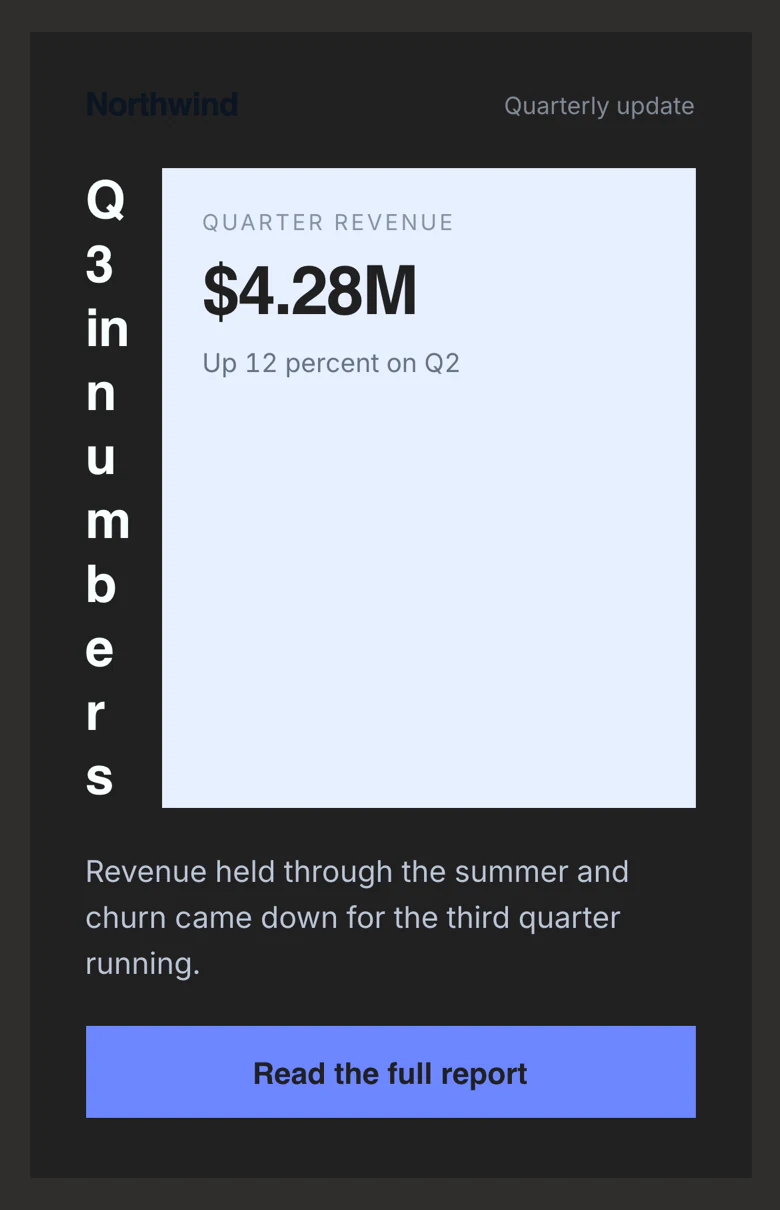
Dark mode adds two more. The panel inverts, so the one block that was drawn dark is the only white thing left and its label sits grey on near white. And the wordmark is a PNG: Gmail recolours the card underneath it and leaves the picture alone, so navy artwork ends up on a near black card while Quarterly update, three centimetres away and made of text, is recoloured and stays readable.
Nothing there is invalid and nothing overflowed. A fixed width next to a fluid one is fine at 600 pixels and unreadable at 361, and no amount of reading the template tells you which of the two you shipped.
What a render gives you back
Each render carries a fidelity rating, because some clients are easier to reproduce than others. Outlook classic on Windows is flagged as an approximation: read it for boxes and colours, not for the exact place a line wraps. For the rest, the picture is close to what lands in the inbox.
The findings are often the more useful half. severity is error, warn or info, and rule is a stable id you can assert on, so a check can fail on "Gmail dropped position" without a human looking at anything.
Testing email rendering from an AI agent
The feature is on the Mailloop MCP server, in beta. list_email_clients returns the catalogue, and screenshot_email takes an email id plus the clients and theme you want.
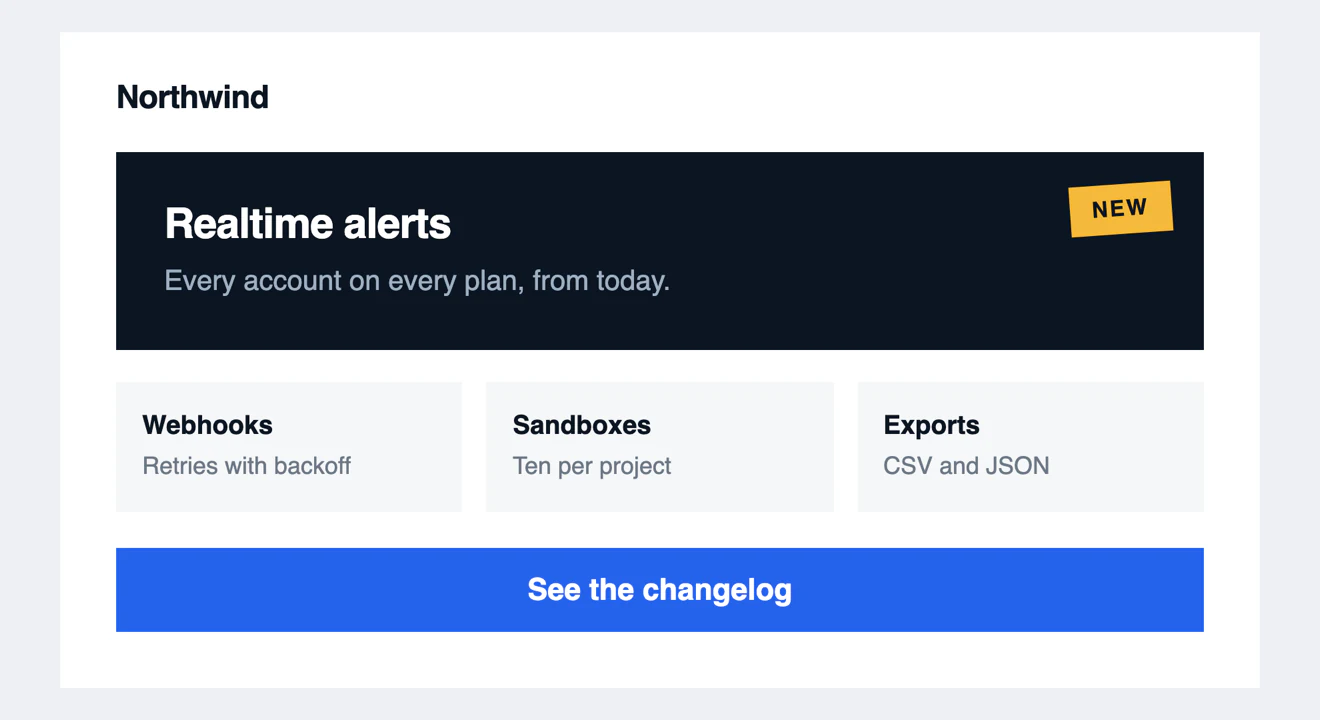
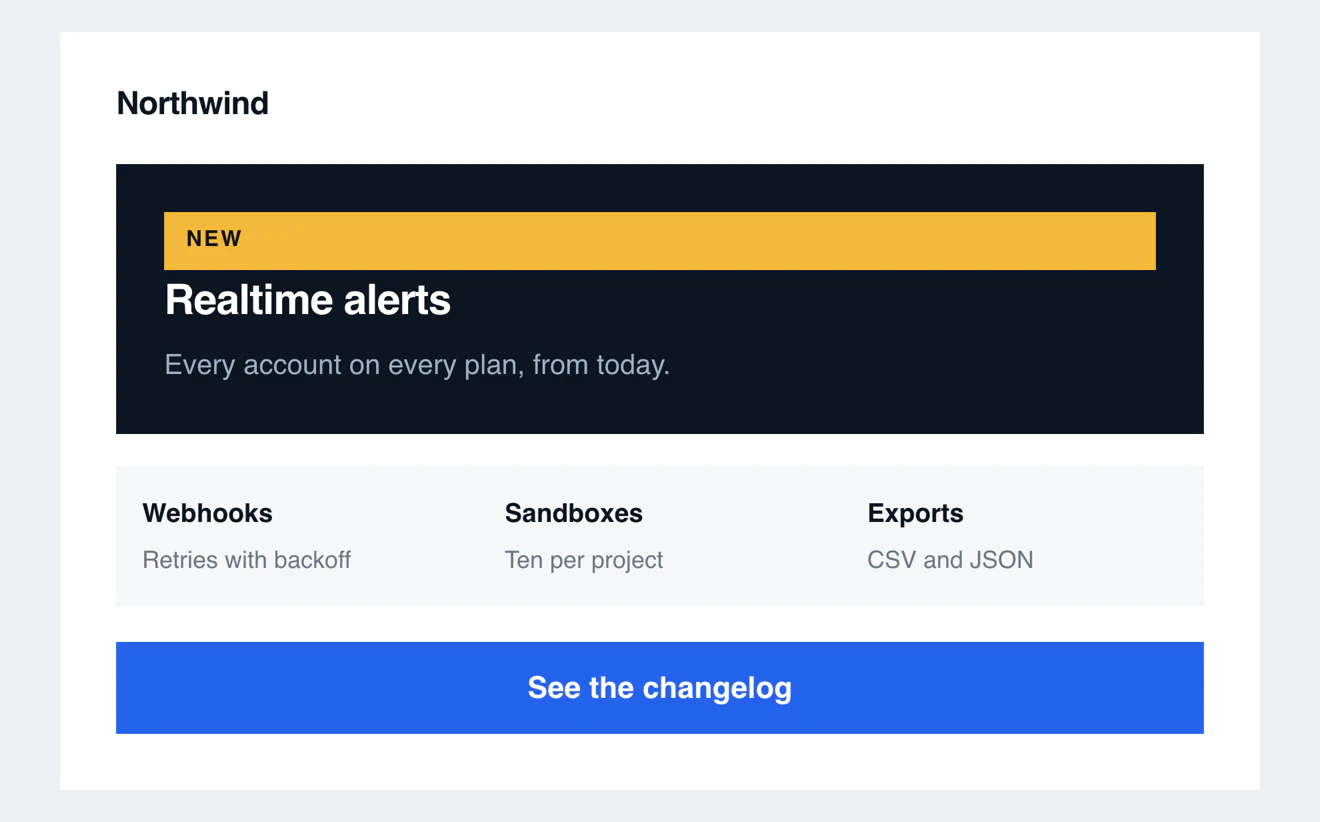
The loop runs itself. The agent triggers your app to send, calls wait_for_email, then screenshot_email. It reads the findings, sees that Gmail dropped an absolutely positioned badge and that Outlook lost a header background, rewrites those parts of the template as a table cell with a background attribute, then sends and renders again until nothing comes back. Setup is on the MCP page, and One Prompt To Perfect Email Everywhere walks through one of these loops end to end.
Which clients we add next
More clients. If the one you need is missing, write to [email protected] and tell us which. That list decides what we build next.
Frequently asked questions
Still stuck? Email [email protected] and we will answer.